WebP to JPG Converter
Best for converting WebP into JPG format for apps, websites, portals, or CMS software that still reject WebP files.
Drop files or a folder here
or click to browse · paste from clipboard
Accepts .WEBP · Up to 1,000 files
WebP to universal JPG — compatible with every app, OS, and platform. Batch 1,000+ files at once.
How it works
Drop your files
Drag and drop, click to browse, or paste from clipboard. Up to 1,000 files at once.
Choose settings
Adjust quality, format, and other options to match your needs.
Click Convert
Everything runs in your browser via WebAssembly. WebP to JPG Converter happens locally — no server involved.
Download
Download files individually or grab all at once as a ZIP.
WebP vs JPG
Converting WebP to JPG is a compatibility exercise, and not a quality upgrade. JPG was a standardized format in 1992 and can be opened by every application, printer, portal and CMS on this planet. In contrast, the newer WebP format is more efficient and looks better than JPG while being stored at the same file size. However, too many upload forms, older software packages and legacy applications and systems still don’t work with WebP.
A JPG file will look identical to the WebP file you converted, but it will typically be 25–35% larger than the original file at the same quality. Unfortunately, there is no way to make a JPG file look better than the original WebP file, as JPG uses less efficient compression.
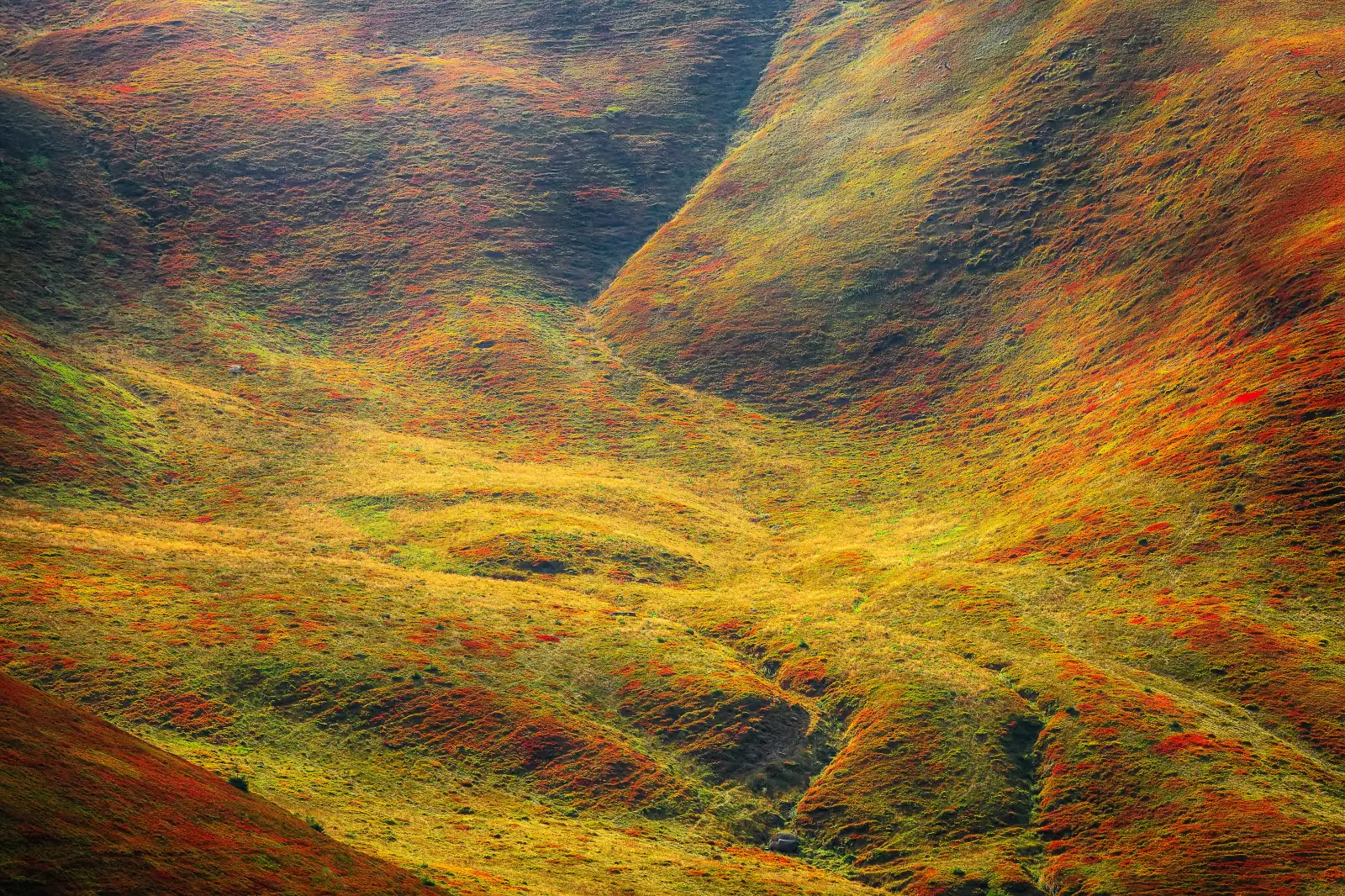 WebP — 552 KB
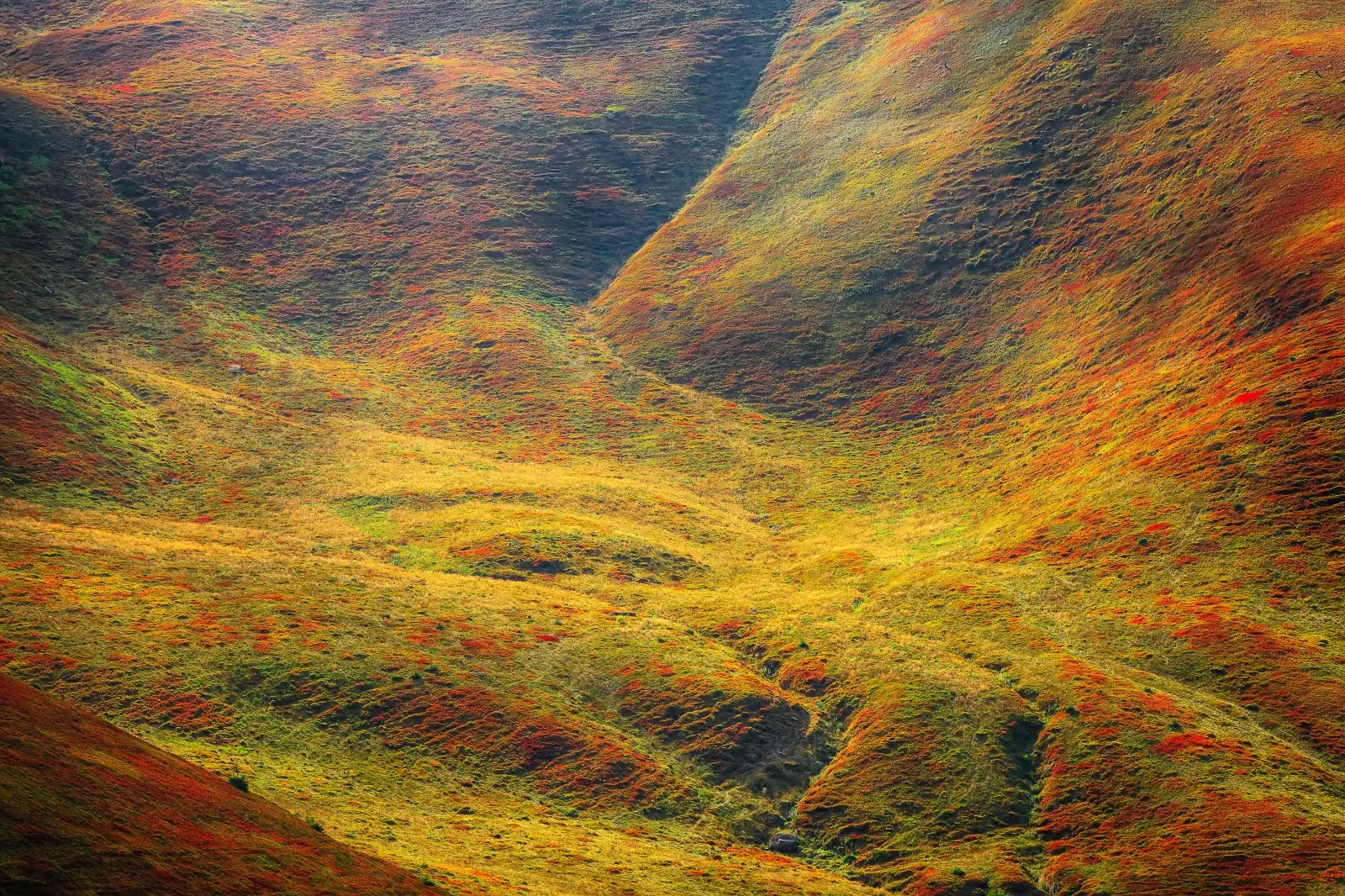 JPG — 1.3 MB
Real conversion at quality 90: 552 KB WebP → 1.3 MB JPG. File size roughly doubles, but the JPG opens in every app, portal, and CMS. Drag the slider to check the visual difference.
Side-by-side
- JPG files will be roughly 25–35% larger than the equivalent sized file of the WebP that you started with.
- WebP compatibility: JPGs open in every app, browser, OS, printer and online form; WebP files often are not compatible with many content management systems, portals and older software.
- Transparency: WebP supports transparency (e.g. background is cutout), JPG does not (i.e. transparent pixels are set to white).
- Animation: The first frame of an animated WebP is copied to the JPG. WebP is an animated image format, JPG is a still-image format.
- Editing software: Most image editing software from the last 30 years or so can open JPG files. WebP support in some of the older image editors is spotty at best.
Why you’re probably here
You have WebP files and something you’re trying to use them with just won’t accept them. Usually it’s one of these:
- A WordPress upload or plugin throwing “file type not permitted”
- An MLS or real estate portal that only takes JPG
- A print shop or photo lab uploader
- Etsy, eBay, or a marketplace listing form
- An older version of Word, PowerPoint, or Keynote embedding images and not allowing WebP.
- A client, colleague, or teacher that specifically asked for JPG files to view your online work.
- A broken-image icon in your email.
Converting your WebP image to JPG is the most common way to make sure your image file will work with business tools. Modern browsers can handle WebP images, but there are many tools in use today that are not yet modern enough to handle this image type.
What happens to your image
File size increases — up to 25% to 35% in comparison to the original WebP file. JPG is less efficient in terms of file size than WebP.
The inability to preserve transparency. Transparency in WebP will be filled with white when converting to JPG. If you need to keep the transparency, use WebP to PNG instead.
Animated WebPs are rendered as single frames with the first frame displayed. Therefore, JPG is a poor format to convert animated images to.
Note that you are also re-encoding the image; thus, there is a small amount of quality loss when converting to JPG, which is already a highly compressed format. However, by default, converting from WebP to JPG uses a quality of 90, which is not distinguishable from the original. To ensure the converted JPG is high enough quality, for images taken for reasons other than Throwaway-Instagram-post, you can bump the quality to 95. Typically, product shots, for example, are converted this way for print.
EXIF data such as camera model, shoot date, GPS coordinates, and even color profile (i.e., sRGB) are preserved when converting to JPG and can be stripped with the option to ‘Strip metadata’ should you be sharing publicly and not want images to include location information, for example.
When you should NOT convert
If nothing is complaining, then there is no need to convert it. WebP is supported by:
- Every modern browser (Chrome, Edge, Firefox, Safari 14+)
- Discord, Slack, Microsoft Teams
- Google Drive, Dropbox, OneDrive
- iOS 14+ and modern Android
- Notion, Figma, Canva
Convert only when you hit a wall with WebP files; otherwise, your files will only get bigger.
Quality setting cheat sheet
- 95–100 — archival, print, portfolio, anything getting edited further
- 90 (default) — the safe general-purpose setting; visually identical to the source
- 80–85 — web thumbnails, social posts, faster loads on image-heavy pages
- Below 75: For very small images where hard file size limits are in place, these qualities will start to look soft on high detail images.
Frequently asked questions
Since WebP images have almost perfect browser support, there are, however, many non-browser applications that still cannot open WebP images, such as older versions of Adobe Photoshop and Lightroom, Windows Photo Viewer, most email clients, etc. In order to make images that you upload online universally openable, it is often best to convert them to JPG.
Yes. Safari added WebP support in Safari 14 (released September 2020) for iOS and macOS devices. Support for WebP images should now work for virtually all modern Apple devices. However, many older iPhones and Macs still won't support WebP images because they don't run Safari 14 or later. These users will safely open JPG images instead.
Typically it depends on the original WebP file (lossless or lossy compressed). If the original was lossless, then converting to JPG at quality 90 will introduce some slight but theoretically measurable degradation (not perceivable in practice). If the original WebP was already lossy compressed, then re-compressing it to JPG introduces some slight degradation as well (due to second compression) — but this can be kept very minimal by choosing a higher quality setting, e.g. 95+.
Yes, all of them! Drop them all in there, and ConvertYard will process them in your browser. Download them all in a ZIP file when done.
Never, because the conversion takes place in your browser, and Conversion never sees your image files. We simply deliver the tool to your browser as a WebAssembly module, which runs the conversion for you locally.